Google Shopping Comparison Site: Shopper & Affiliate Guide
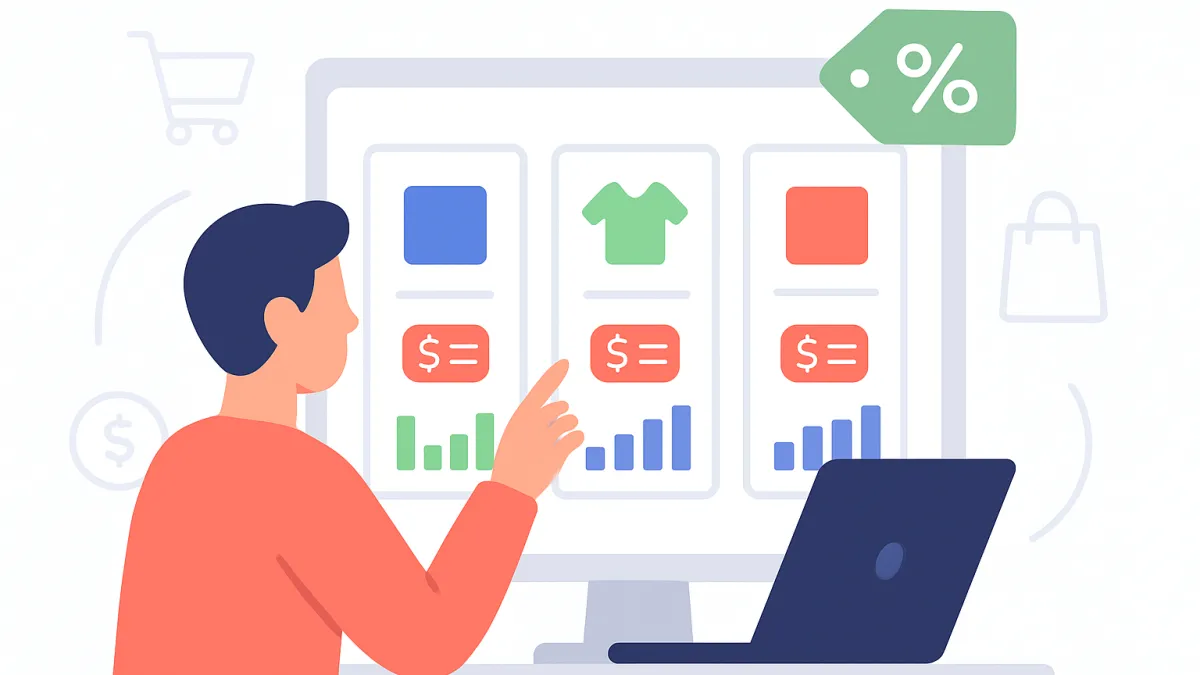
When people talk about a “Google Shopping comparison site,” they usually mean one of two things: using Google Shopping itself to compare prices, or building a site that works like Google Shopping but for a specific niche.
This guide covers both. You’ll learn how to use Google Shopping to compare prices properly, how it stacks up against other price comparison sites and apps, and — if you’re an affiliate — how to build your own Google Shopping–style comparison site that can actually earn.
What Google Shopping Is (and What It Isn’t)
Google Shopping is Google’s comparison shopping engine. It pulls product data from online stores, shows prices side by side, and lets shoppers filter by things like price, shipping, brand, and seller rating.
Key points to understand:
- Products come from merchants that upload feeds through Google Merchant Center.
- Listings are paid ads and organic listings. Merchants can bid for visibility, but some placements can be free depending on region and program.
- Google is not the seller. When you click, you’re sent to the merchant’s site to buy.
This answers a common question: yes, Google does have a shopping site (shopping.google.com in many countries), but it’s a directory and comparison tool, not a full online store.
How to Use Google to Compare Prices Step by Step
Here’s how to use Google as a price comparison tool effectively. This covers “How do I use Google to compare prices?” and “How do I open Google Shopping?” at the same time.
On desktop
- Search for the product by name in the normal Google search box, e.g. “Sony WH-1000XM5 headphones”.
- On the results page, click the “Shopping” tab under the search bar. That opens the Google Shopping comparison view.
- Use the filters on the left (or top) to refine by price range, condition (new/used), brand, retailer, delivery options, etc.
- Click a specific product to see its product detail page. Look for a “Compare prices” or a list of sellers. That’s where you’ll see multiple stores offering the same product.
- Sort by total cost, not just base price. Some sellers show cheap products with very high shipping.
On mobile
- Open the Google app or your browser and search for your product.
- Swipe through the horizontal product carousel or tap “Shopping” near the top.
- Use the filters (icon usually in the top right) to narrow down by price, brand, and retailer rating.
- On a product card, tap to open details, then scroll to see a list of sellers and prices.
Google doesn’t currently offer a separate “Google Shopping app” in every region, but the Shopping tab in the main Google app or browser gives you the same comparison features.
Is Google Shopping the Best Price Comparison Site?
People often ask “Which site is the cheapest for online shopping?” or “What is the best price comparison site?” The honest answer: it depends on what you’re buying, where you live, and how much work you’re willing to do.
Where Google Shopping shines
- Huge coverage. Many mainstream retailers push their feeds into Google, so you get a wide view of the market.
- Fast for one-off checks. For a single product, you can usually get a feel for the price range in seconds.
- Good filters. You can filter for free shipping, customer ratings, or specific sellers.
Where Google Shopping falls short
- Not every store is listed. Smaller or very niche shops may not use Google Merchant Center at all.
- Not always the absolute cheapest. Some merchants don’t advertise every SKU, or they adjust feeds slowly. A small shop can beat big retailers but still not appear.
- Ad bias. Sponsored listings get prime positions. They’re not necessarily the lowest price.
So while Google Shopping is one of the best comparison shopping engines overall, it’s not infallible. For big-ticket items, it’s smart to cross-check on at least one other comparison site or app and on your favorite niche stores directly.
Comparing Your Options: Google vs Apps vs Your Own Site
If you’re an affiliate marketer or publisher, you care about more than saving money — you care about traffic and revenue. Here’s how Google Shopping compares with third-party comparison apps and with running your own price comparison site.
| Option | Who controls the data | How it makes money | Best for |
|---|---|---|---|
| Google Shopping | Google + merchants’ product feeds | Ads (cost-per-click from merchants) | Shoppers checking prices quickly; retailers buying traffic |
| Price comparison apps / sites | App owner; often pulls from multiple APIs/feeds | Affiliate commissions, ads, sometimes subscription | Frequent deal hunters; broad categories like electronics or travel |
| Your own niche comparison site | You; you choose which merchants and offers to show | Affiliate commissions, lead gen, sponsorships | Specific niches (e.g., VPNs, mattresses, SaaS tools) where content + curation wins |
For most shoppers, using Google Shopping plus one trusted comparison app is enough. For affiliates, though, the real opportunity is in building your own niche comparison site that ranks in Google and earns from affiliate programs.
How Google Shopping Affects Your Comparison Site Strategy
As an affiliate, you’re not trying to beat Google Shopping at being broad. You’re trying to win on specific intent that Google Shopping doesn’t handle well, such as:
- “Best budget monitor for home office under $200”
- “Cheapest EU-based VPN for streaming sports”
- “Quietest mechanical keyboard for coding”
Google Shopping is good at “Here’s a product and some prices.” It’s bad at opinion, depth, and context. Your comparison site can win by:
- Testing and reviewing products in depth.
- Explaining trade-offs (“this one is cheaper but worse battery life”).
- Creating use-case based rankings (“best for gaming”, “best for students”).
- Keeping content updated and clearly labeling prices and deals.
Tools like ReviewTycoon help here by handling the plumbing: offer management, click tracking, cloaked affiliate links, and structured comparison tables, so you can focus on research and content.
Building Your Own Google Shopping–Style Comparison Site
If you’d like your own “Google shopping comparison site” — but focused on a niche you understand — here’s a practical process I use.
1. Pick a tight niche
Don’t try to compare “all electronics.” Start with something where you can realistically become the best resource, for example:
- Electric scooters for city commuting
- Podcast microphones for beginners
- Website builders for small businesses
The narrower you go, the easier it is to write specific, useful comparisons Google Shopping can’t match.
2. Map categories and filters
Before touching any tool, sketch how your site should be structured:
- Main categories (e.g., “Desktop monitors”, “Laptop stands”).
- Key attributes to compare (size, weight, battery life, speed, free plan, etc.).
- Filters that matter to buyers (budget range, brand, feature checkboxes).
In ReviewTycoon, you can define this structure quickly by adding and editing categories and then attaching offers to those categories.
3. Get product and price data
You have three main options for feeding your comparison tables:
- Manual entry. Fine for small, curated lists (like “top 10 microphones”).
- Affiliate network data feeds or APIs. Many networks provide structured product data you can sync periodically.
- Hybrid. Use data feeds for basic info, then manually verify key specs and prices before publishing.
With ReviewTycoon, you can quickly add and edit offers and attach affiliate links with cloaking and click tracking already baked in.
4. Build comparison tables that answer buyer questions
Good comparison tables don’t just copy a data sheet. They emphasize what matters most to the buyer, in plain language:
- Clear “Best for” labels.
- Pros/cons columns.
- Key specs only (don’t overload every technical detail).
- Visible “Go to store” or “View deal” buttons.
Instead of fighting with spreadsheets and HTML tables, you can use ReviewTycoon’s built-in system for creating information labels and comparison tables so your comparisons are consistent across the site.
5. Add real reviews and editorial context
Google Shopping relies heavily on user star ratings. Your site should combine:
- Editorial reviews where you (or hired writers) explain strengths and weaknesses honestly.
- User reviews with spam filtering to avoid fake or abusive content.
If you struggle with volume, ReviewTycoon can generate AI-written editorial reviews that you then fact-check and personalize.
6. Make it SEO-friendly
A Google Shopping–style site only works if traffic finds it. At minimum:
- Use clear title tags and meta descriptions that reflect the exact problem your page solves.
- Group related products into tightly themed pages.
- Aim for search terms like “best X for Y” and “X vs Y comparison”.
If SEO feels overwhelming, this short SEO starters guide on optimizing your pages with meta tags will get you moving in the right direction.
Monetizing Your Comparison Site Safely and Effectively
To turn your comparison site into more than a hobby project, you need a clear monetization and compliance plan.
1. Use multiple affiliate programs
Don’t rely on a single store for every product. If you compare three merchants, ideally you have affiliate relationships with all three. That way:
- You can list whichever seller is actually cheapest or best.
- You’re not forced to push one store when it’s clearly a worse deal.
- Your earnings are diversified if a program changes terms.
2. Be transparent about pricing
Even Google Shopping can’t guarantee prices are current down to the minute. On your site:
- Include a note like “Prices were last updated on [date] and may change.”
- Avoid writing “the cheapest” unless you’ve recently verified it.
- Where possible, display a “from $X” price instead of a fixed promise.
3. Follow disclosure and data rules
If you’re using affiliate links, clearly disclose that you may earn a commission. In many countries, this is required. Also make sure you have:
- A clear privacy policy and terms of service.
- Cookie consent if you’re tracking behavior beyond basic analytics.
It’s simple to spin up legal pages with ReviewTycoon using the feature for creating a custom TOS, privacy policy or other pages so you stay on the safe side.
Does Google Do a Shopping List or App?
Google’s ecosystem changes often, so this confuses people. Two quick clarifications:
- Shopping list. Google used to tie lists into various apps (Assistant, Keep, Shopping). Today, your best option is usually the main Google app, Google Keep, or a grocery-specific app. That’s separate from Google Shopping price comparisons.
- Shopping app. In many regions, there is no standalone “Google Shopping app.” The Shopping tab in standard Google search provides the comparison features.
If you’re a site owner, don’t worry too much about Google’s list functionality. Focus on making your own site so useful that people bookmark it as their go-to shopping helper instead.
Bringing It All Together
Google Shopping is a powerful comparison tool, but it’s not the final word on “cheapest” or “best.” Smart shoppers use it as a starting point, then cross-check a couple of alternatives for important purchases.
As an affiliate or publisher, trying to beat Google at being broad is a losing battle. Instead, build a tightly focused, content-rich comparison site in a niche you understand. Use solid structure, honest reviews, and clear comparison tables to answer the questions Google Shopping can’t. If you want to skip the technical headaches and get straight to testing ideas, the ReviewTycoon pricing and plans include a free Hobbyist tier so you can experiment with a few real-world review sites before going bigger.
Frequently asked questions
How do I use Google to compare prices effectively?
Type the exact product name into Google, then click the Shopping tab. Use filters for price, brand, and shipping. Open the product page and scroll to the Compare prices or list of sellers section. Always compare total cost, including shipping and taxes, and cross-check at least one other site for expensive purchases.
Is Google Shopping the same as Google search?
No. Google Shopping is a specific part of Google focused on products and prices. It uses product feeds from merchants and shows items you can buy, often as ads. Regular Google search indexes all kinds of content: articles, videos, forums, and more. You usually access Shopping via the Shopping tab after a product search.
Is Google Shopping free for shoppers to use?
Yes. Google Shopping is free to use for shoppers. You don’t pay Google to search for products or compare prices. Google makes its money by charging merchants for ads and certain placements. You only pay when you actually buy from a retailer after clicking through to their website.
What is the best price comparison app or site?
There is no single best option for every product. Google Shopping has broad coverage, while some apps specialize in areas like electronics, travel, or groceries. Often the best approach is to use Google Shopping as a baseline and then double-check prices on one trusted comparison app plus the websites of your favorite niche retailers.
How can I build my own price comparison website?
Start by picking a narrow niche, like VPNs or podcast gear. Plan your categories, key features to compare, and filters. Collect product and price data via affiliate programs, APIs, or manual research. Then use a tool or platform to build structured comparison tables and review pages. Services like ReviewTycoon let you launch hosted comparison and review sites without coding.

The ReviewTycoon team has been building and running review sites for over 15 years. We share what works for affiliates and publishers. About us


